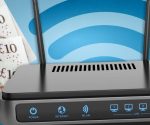


Simple Virgin Media Wi-Fi check may prove why your broadband is so bad
If your broadband isn’t up to scratch and your download speeds feel pretty dismal, there could be a very simple reason why. Virgin Media has just released some useful advice, with the internet service provider confirming that having too many devices connected to routers can cause some serious congestion. With more and more homes buying internet-powered gadgets, this issue will only get worse and can be exacerbated if the router is an older Wi-Fi 4 model that can’t cope with a large number of lights, speakers, TVs and consoles connected to it.
“WiFi works in shared bandwidth. Every phone, tablet, laptop, smart TV, or smart home device connected to your network uses a portion of your available speed. If too many devices are active at the same time, that shared connection can start to feel stretched. You might notice slower downloads, streaming that constantly buffers, video calls that drop out mid-conversation and delays when gaming online. “
Virgin says that most new Wi-Fi 5 and Wi-Fi 6 routers can happily cope with around 30/40 devices connected to them, but the more things a home has online, the slower the broadband can get.
For example, if multiple gadgets are streaming 4K movies at the same time, it may cause things to start to stutter.
Devices disconnecting or struggling to reconnect are a classic sign of network congestion.
Virgin says one way to spot trouble is to look at your router. “If you notice your router blinking more than usual, especially when devices aren’t actively being used, it could mean multiple devices are silently using the network,” Virgin explained.
So, what should you do is things are not up to scratch?
The first step is to see exactly what’s connected. Once you know how many devices are on your network, it’s much easier to spot anything unnecessary and take back control of your WiFi. Most routers, including Virgin’s Hubs, let you see all the connected devices through their admin interface or a dedicated app.
Here’s how to check.
Open your router’s app or web admin page: instructions are usually printed on the router.
Find the section labelled “Connected Devices” or “Device List.”: This will show all devices currently using your network. Many smart home gadgets or guest devices might stay connected even when not in use. Forget or remove them from your network.
Review the devices: Note how many devices are active, which ones are using the most data, and spot any you don’t recognise. Most routers allow you to give priority to certain devices (like your work laptop or smart TV) so they get the best speed.
If you follow this advice and keep an eye on all of your devices, you might things suddenly speed back up again.